——————————————————————————————–
Click the link below to download a pdf reviewing the screenflow shown below.
https://vit100.midtronics.com/wp-content/uploads/sites/26/2022/02/VIT-100-Screenflow-Overview.pdf
———————————————————————————————
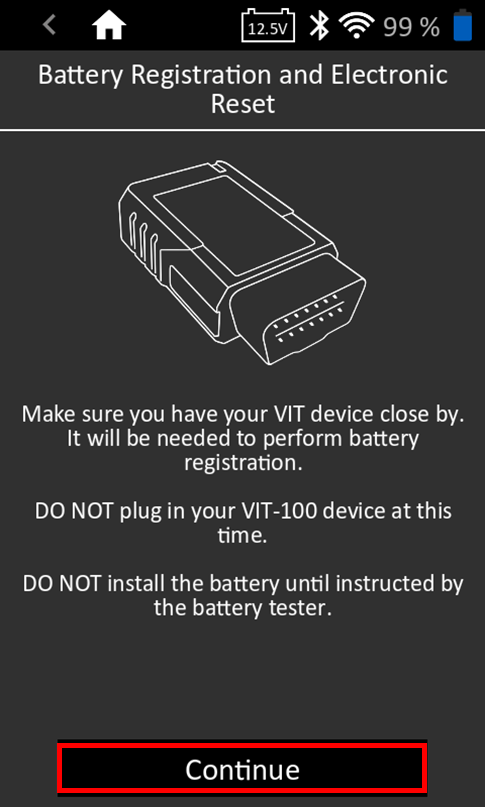
- Select Battery Reset & Registration App

- Make sure VIT is close by vehicle
- Do not connected to OBDII Port
- Do NOT connect battery to vehicle until instructed to do so by the JDT.
- Tap “Continue”
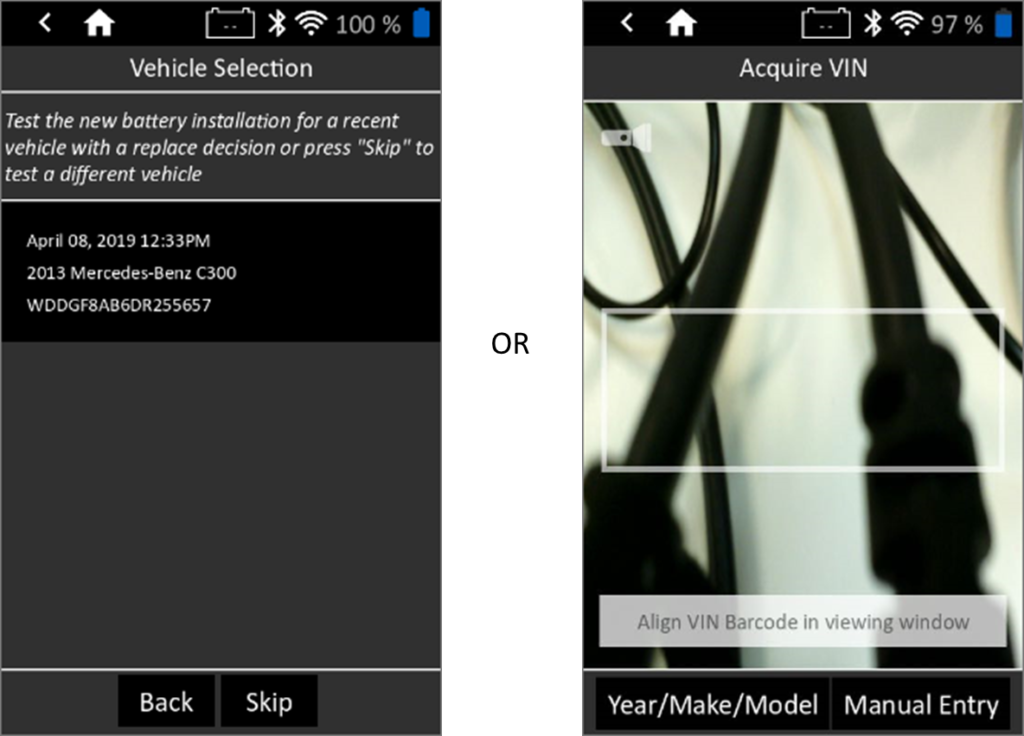
- Enter the vehicle’s VIN or select the vehicle from the Vehicle Selection screen
- Connect the JDT clamps to the new battery
- IMPORTANT: The battery should not be connected to the vehicle during this test
- Keep the old battery nearby, it will be needed for the registration process

- Enter the required battery details from both the old and new battery
- Confirm both battery’s chemistry and post location
- Old Battery…enter either the Amp-hour (Ah) or the reserve capacity (RC) from the battery label
- New Battery…enter either the Amp-hour (Ah) or the reserve capacity (RC) and then enter the battery’s CCA rating from the battery label
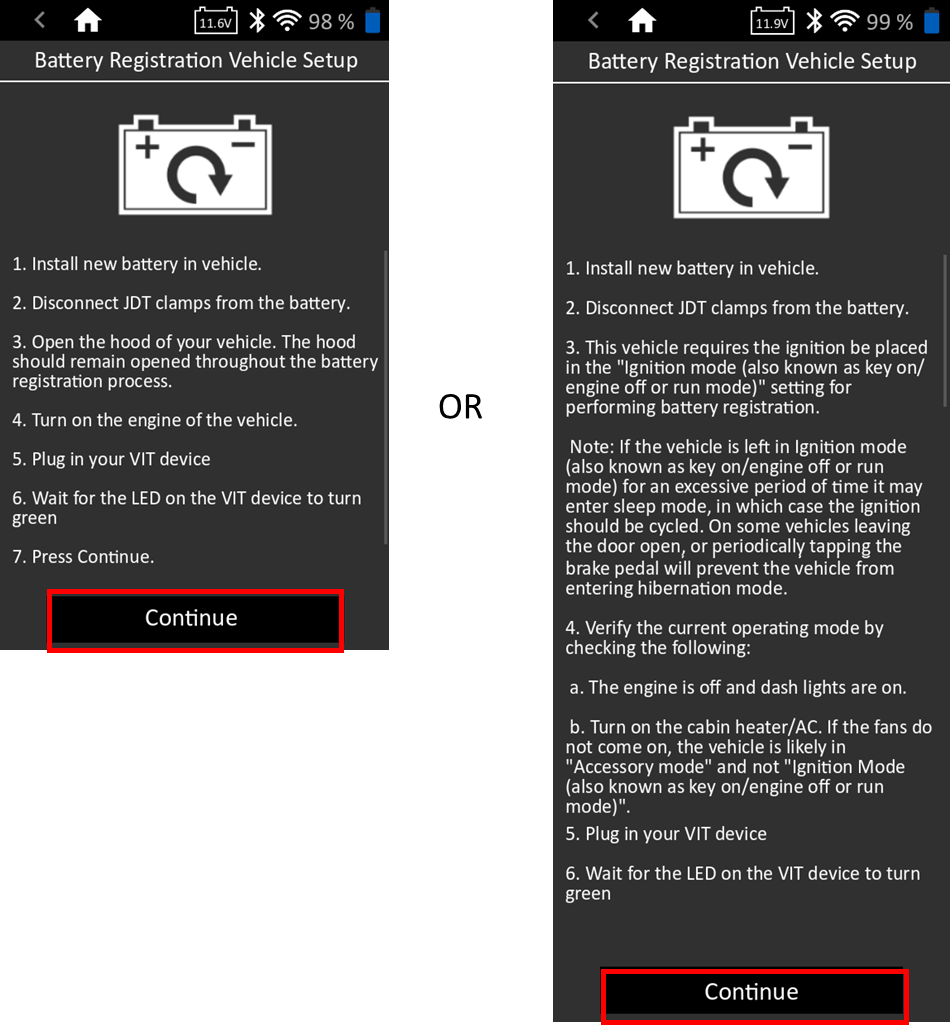
- Follow the Battery Registration Vehicle Setup instructions exactly as shown on the JDT.
- There are two different versions of the setup instructions
- Failure to follow the steps shown will result in a failed battery registration
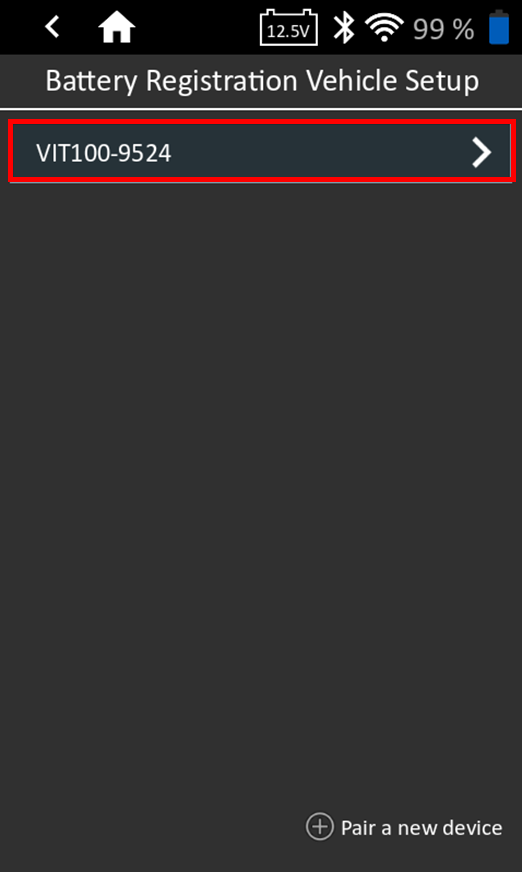
- Select the VIT-100 which is paired with the JDT-1
- The pairing code is located on the back of the VIT-100
- If no VIT device is available, tap “+Pair a new device” and complete the pairing instructions
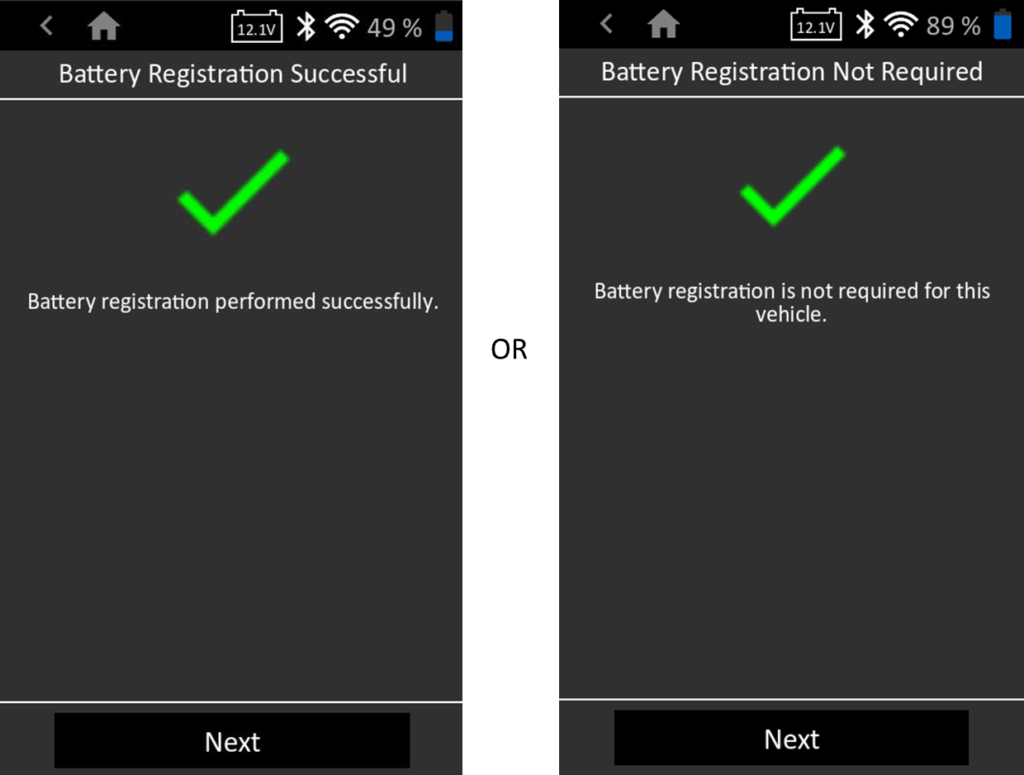
- The JDT will display the result of the battery registration. Result options include:
- Battery Registration Successful
- Battery Registration Not Required
- Battery Registration Failed (An option to Retry or Skip is available)
- Disconnect the VIT-100 from the vehicle’s OBDII port
- The JDT will not allow the user to move forward with the process until the VIT is removed
- Do NOT place the VIT down in the vehicle after removing it from the OBDII

- Complete any Electronic Resets required for the vehicle
- The JDT does NOT perform any resets for electronics, it provides a list of instructions for the user to follow
- Each step of the instruction list can be checked off as they are completed

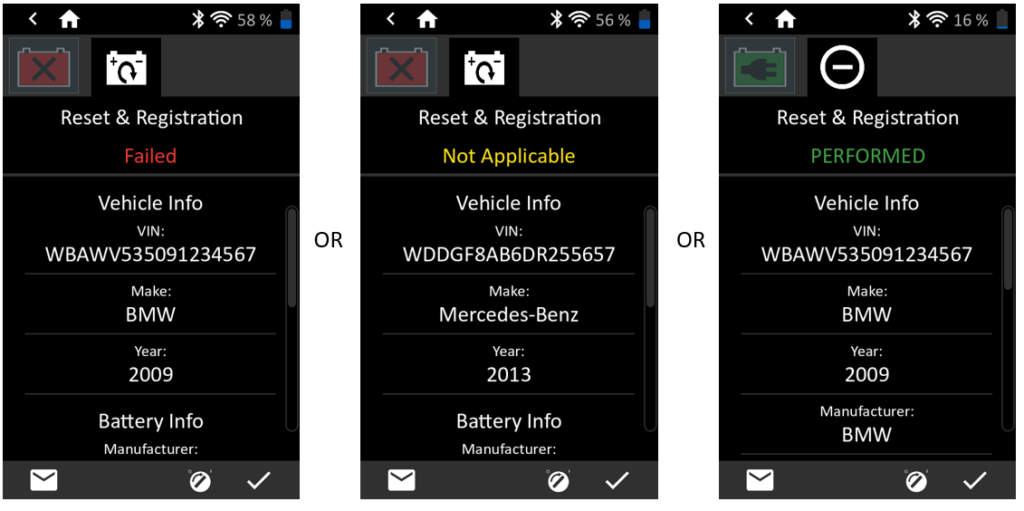
- The Results of the Battery Registration are shown.
- Tap the Battery icon for the initial battery test result
- Tap the Battery Registration icon for the registration results
- Similar to a battery test, the results can be emailed
- A system test is also available if needed.